

One Button Studio and Lightboard Studio
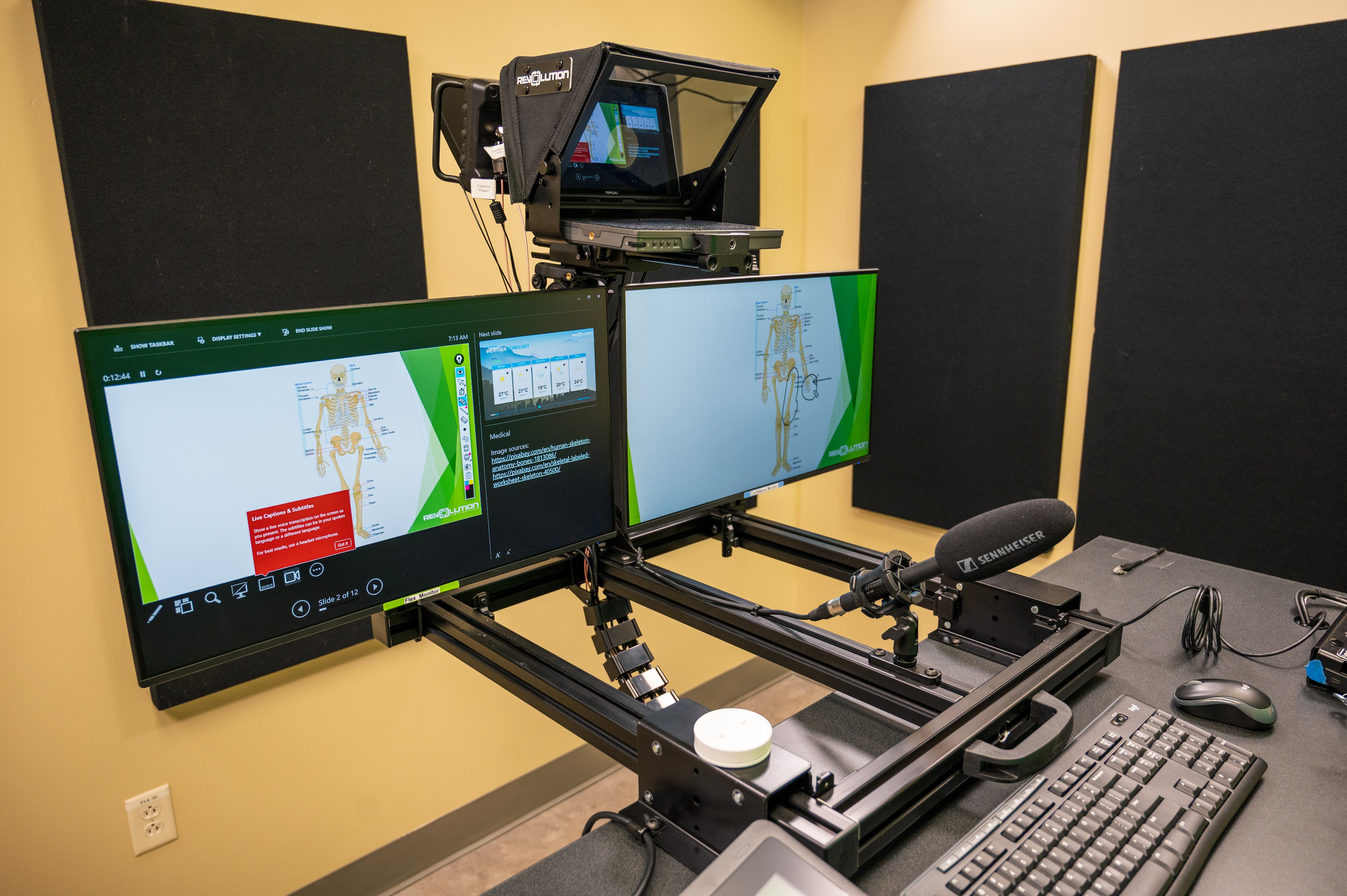
The One Button Studio and Lightboard Studio are easy-to-use video recording setups designed for individuals with no prior video production experience. Equipped with backdrops, lighting, audio, and camera equipment, the studio provides all the essential tools needed for your production. It allows you to create high-quality, polished video projects without requiring any knowledge of lighting or cameras.
Both One Button Studio and lightboard Studio solution significantly streamlines the video production process by removing several time-consuming steps. This leads to a studio experience that demands minimal time and effort while consistently delivering high-quality results. Videos can be published directly to the cloud or saved to a USB drive in a standard video file format. This service is available to all NLC students, faculty, and staff.
What would I use the One Button Studio/Lightboard Studio for?
Reservation
You can reserve One Button Studio or Lightboard Studio using the links provided below. The Reservation Calendar will show you available times and dates for up to one hour of studio time. Once you select a time and date, please fill out the reservation form with your information and submit it. If you need assistance with making a reservation, contact the Instructional Innovation Center or Distance Learning Office at 210-486-5372 or nlc-dlc@alamo.edu.
Please click on the links below to make a reservation for the studio.
Instructions
Please click the links below for instructions on using Lightboard Studio and One Button Studio:
-
Best Practices for recording videos
- Practice your presentation beforehand.
- Look directly into the camera. Keep your gaze steady and speak loud & clear.
- Longer presentations are best recorded into smaller chunks.
- Before starting and stopping your video, look at the camera. This gives you a clean-cut point to edit from.
- Position yourself slightly away from the center of the frame. This will add visual interest even without a visual presentation.
- Use your hands to emphasize key points and above your waist.
-
What to wear?
- Wear appropriate clothing. Keep it professional.
- Wearing glasses will create a light reflection.
- Avoid wearing all-white or all-black colors. These colors will make it difficult for the camera to balance the lighting.
- Avoid wearing bright green or shiny fabrics.
- Most solid colors work well; avoid stripes or bold patterns.
- Be aware of jewelry that may be flashy or noisy; the microphone may pick up these unwanted sounds.
-
Frequently Asked Questions?
- Where can I edit my video?
You will have access to the video editing computers outside the studio.
- In what format does the system record my video?
The system will compress and save your recordings in MP4 format, which can later be edited in video applications such as iMovie, Adobe Premiere, and Windows Movie Maker, or uploaded to YouTube, Facebook, etc.
- Where can I edit my video?